
YouTube Statistics - Manual
Prerequisites
In order to be able to fetch data from YouTube, the application requires you to enter a valid YouTube Data API key. The key can be created and registered on Google's developer portal: https://developers.google.com/youtube/registering_an_application.
YouTube Statistics Application Modes
The YouTube Statistics software contains the following applications:
-
YouTube Statistics - The main application used to fetch data from YouTube
and to display various statistics that can be exported to Excel. YouTube
Statistics can be run in two modes:
- Full mode - the application is started with a full graphical interface where the user can manage video data, fetch new statistics, or export data to Excel.
- Silent mode - the application is started as a console application. It just fetches current data from YouTube and exits.
- Migration Tool - a tool that enables migration from the previous (1.x) versions of YouTube Statistics to the new one.
YouTube Statistics - Full Mode
Full Mode allows you to manage video data, fetch statistics and export data to Excel. When opened, the application will show the following screen:
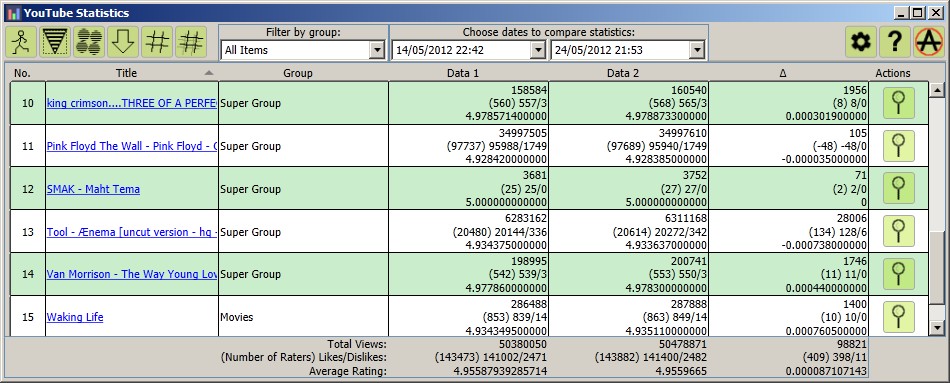
The main window consists of the toolbar at the top and statistical data below. The available toolbar commands are:
-
 - Exits the application
-
 - Manage Videos
-
 - Manage Video Groups (add, edit, or delete a video group)
-
 - Go to YouTube and fetch current statistics
-
 - Export Current View to Excel
-
 - Export all data to Excel
- Filter by group - filter the currently shown videos by the groups to which they are assigned.
- Choose dates to compare statistics - show the data and the difference in statistics for any two dates for which data has been fetched from YouTube.
-
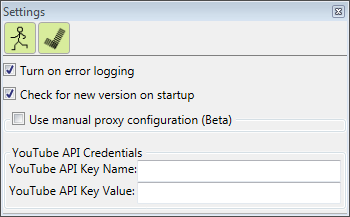
 - Allows you to change the application settings
-
 - Opens this page
-
 - Shows the "About" screen
Manage Videos
To manage video data, press the
button. A screen like this will appear:
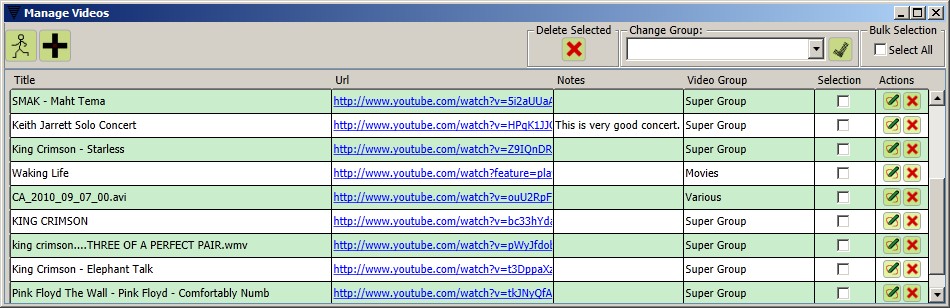
There are several things you can do on this screen:
- Add Videos
- Delete Videos - delete all video data for the selected videos
- Change Group - assign a group to a video for easier categorization
- Edit Video Data - edit additional notes for the video
Add Videos
You can add new video data links by pressing the
 "Add Videos" button. The following screen will appear:
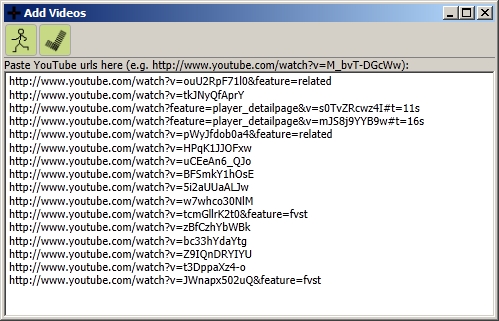
As shown in the example, you can add (usually by copy/paste) any number of
video links. After saving the links, you can return to the Manage Videos screen to
make additional settings for each video, or return to the Main Screen, from
which you can download current statistics by pressing the
"Go to YouTube and fetch the current statistics!" button.
YouTube Statistics - Silent Mode
"Silent mode" enables you to run YouTube Statistics from the command line for one purpose - to fetch data for all the YouTube links you have previously added to the YouTube Statistics application. This is most useful when you want to fetch statistics regularly to build a more complete statistics history. You can configure Windows Task Scheduler to run YouTube Statistics at specified intervals. Follow these links for further information on how to configure Windows Task Scheduler:
To run YouTube Statistics in "Silent Mode", pass -s
as a parameter, as in the following example:
YouTubeStatistics.exe -s
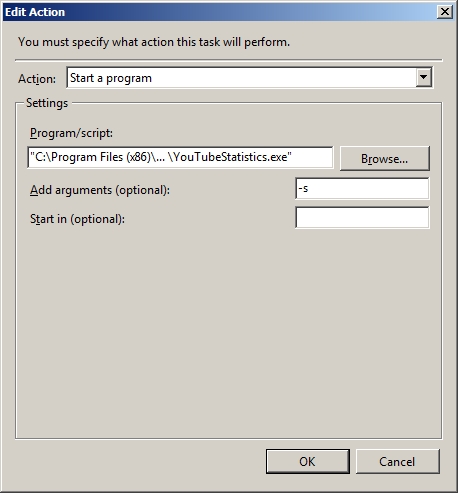
An example of the Action screen for "Silent Mode" in Windows 7 Task Scheduler is shown in the following image:
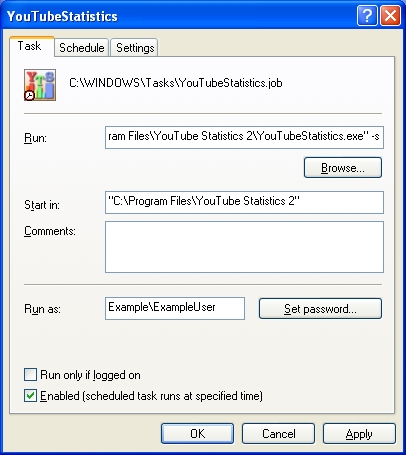
and an example of the Task screen for "Silent Mode" in Windows XP Task Scheduler is shown in the following image:
YouTube Statistics will run in the background, without opening the user interface, download current statistics from YouTube, and save them to the data store. If you open YouTube Statistics in "Full Mode", you will see the most recent statistics.
Note: YouTube Statistics cannot be run in "Full Mode" and "Silent Mode" at the same time. If that situation occurs, you will be notified so you can act accordingly.